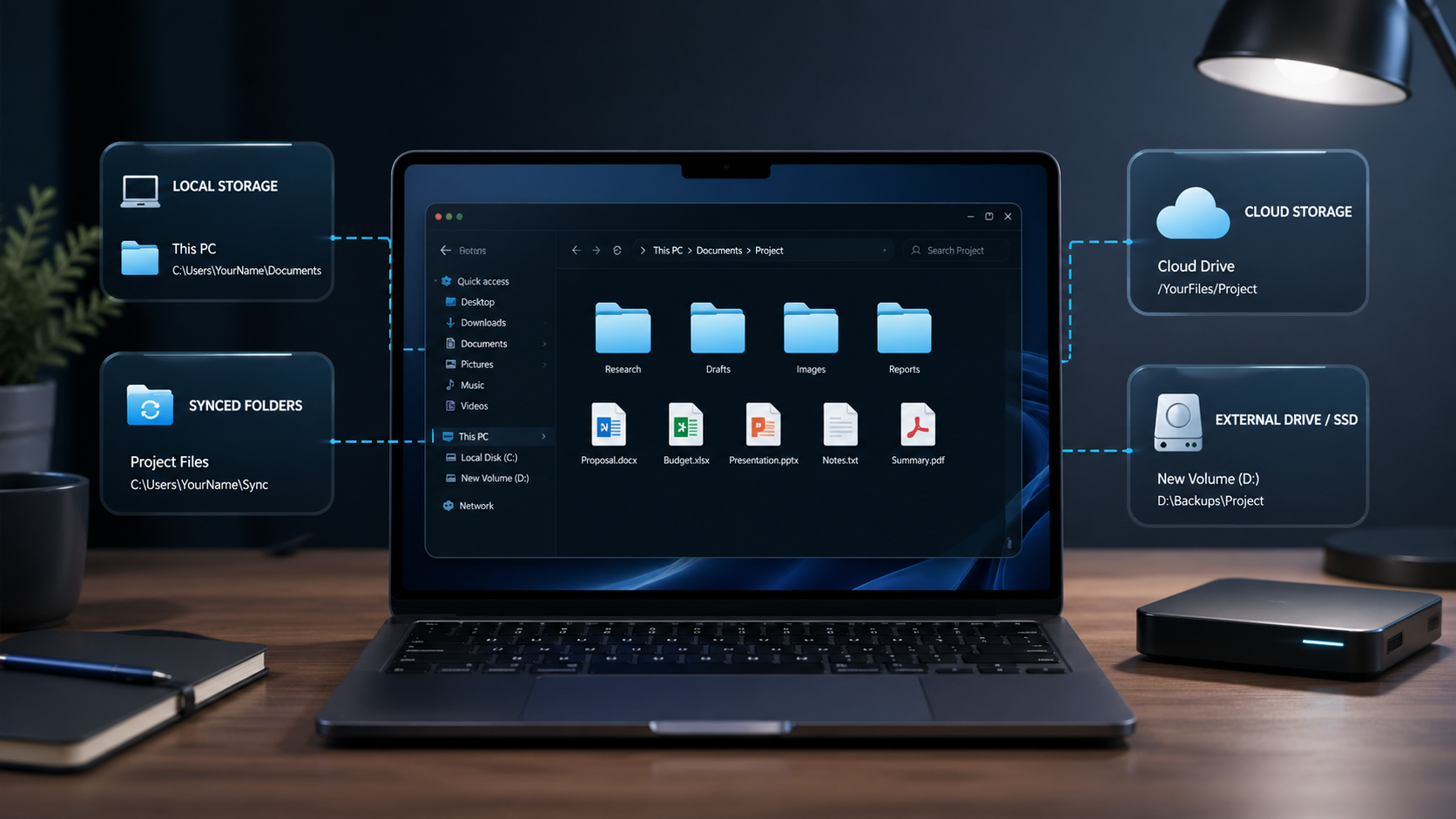
One of the things that confuses a lot of beginners is not the file itself, but where that file actually goes after you save it.
You click Save, close the window, and later a very normal question appears: where did that file go? Is it really on the computer? Is it in OneDrive? Is it on a company server? And what exactly is that Disk C that keeps showing up in Windows?
If this has ever felt confusing, you are not alone. It is one of those basic topics that many people use every day without ever having it explained clearly. But once you understand the difference between local storage, cloud storage, and network folders, a lot of things start making much more sense.
Start with the basic idea of storage
Before looking at folders and drives, it helps to understand one simple difference inside the computer itself.
There is temporary memory, and there is permanent storage.
Temporary memory is RAM. This is what the computer uses while it is actively working. If you open a file and start editing it, that activity is happening in memory. The easiest way to picture it is as the surface of a desk. You are using it right now, but it is not where things stay forever.
Permanent storage is your hard drive or SSD. This is where files stay saved even after you turn the computer off. If RAM is the desk, storage is the filing cabinet.
That is why saving matters. If the computer shuts down before you save your work, the unsaved changes in memory are lost. What stays safe is the version that was actually written to storage.
So what is Disk C?
On most Windows computers, the main drive is called C:.
This is usually where Windows is installed, where programs live, and where your personal files are stored by default. In many laptops, this is the main storage location you use every day, even if you do not realize it.
If the computer has other drives, they may appear as D:, E:, or other letters. External drives and USB devices also receive letters when connected. But for most users, C: is the main one that matters.
This is also why you keep seeing it. It is the central storage area of the computer.
Where are your files inside C:?
When you sign in to Windows, the system creates a personal space for your user account inside the C drive.
That is where folders like Desktop, Documents, Downloads, Pictures, Music, and Videos usually live. In other words, these familiar folders are not floating somewhere outside the computer. They are real folders inside your user profile.
A typical path looks like this:
C:\Users\YourName\
And inside that, you usually have folders such as:
- Desktop
- Documents
- Downloads
- Pictures
- Music
- Videos
So if your Windows username is Maria, your Desktop is normally located here:
C:\Users\Maria\Desktop
The same idea applies to Documents and Downloads. They are all part of your user area inside the C drive.
This also explains something else that confuses beginners. If two people use the same computer with different user accounts, each person has their own Desktop, Documents, and Downloads. They are separated because each person has a different user folder.
The Desktop is not a separate world
A lot of beginners think the Desktop is some special area outside the normal folder system, but it is not.
The Desktop is just another folder inside your Windows profile. It looks more visible because Windows shows it immediately when you log in, but technically it is still just a folder inside your user space.
That matters because it helps you understand that saving something on the Desktop still means saving it in a real path on the computer.
It is visible, yes, but it is not magically outside the system.
What changes when OneDrive is active?
This is where things become more interesting, and also where a lot of confusion starts.
OneDrive is Microsoft’s cloud storage service. When it is set up on a computer, it can start syncing folders like Desktop and Documents to the cloud. That means the file may still appear to be in the same place on your screen, but behind the scenes it is now connected to your Microsoft account online as well.
Without OneDrive, your Desktop might live here:
C:\Users\YourName\Desktop
With OneDrive active, it may move to something like this:
C:\Users\YourName\OneDrive\Desktop
That means the file is not only connected to your computer. It is also being synced to Microsoft’s servers online.
In practical terms, this can be very useful. If the computer stops working, your files may still exist in the cloud. If you log into another device with the same account, those files may appear there too.
But this is also where people get confused. Sometimes a file appears in a folder on the laptop, yet it is not fully stored offline. It may only be available through the cloud until you open or download it.
That is why a file can seem like it is “on the computer” but still fail to open without internet. What you are seeing may be a synced placeholder rather than a fully local file.
A useful detail about OneDrive
OneDrive can show different file states.
Some files are fully downloaded and available offline. Others are online-only until you open them. If you know you will be without internet, it is a good idea to make important files available locally in advance.
This small detail matters a lot in real life. Many people only discover it when they are traveling, lose connection, and suddenly cannot open something they thought was already saved on the laptop.
What is a network folder?
If you have worked in a company, you may have seen a drive such as G:, P:, or Z: in File Explorer, often with a name like Shared, Company Files, or Department.
This is usually a network folder.
A network folder is not really stored on your computer. It is stored on another machine, usually a company server, and your computer accesses it through the office network or through VPN. Windows may display it like a normal drive, but the file is actually saved elsewhere.
That is the key difference.
If you save a file to your Desktop, it is typically in your user profile on the C drive. If you save it to a mapped company drive, it may be stored on a server controlled by the company.
This is why network folders can disappear when you leave the office network or disconnect from VPN. The folder was never truly on your laptop. You were only accessing it through the network.
Local, cloud, and network are not the same thing
One reason this topic feels confusing is that all three can look very similar on the screen.
They may all appear inside File Explorer as ordinary folders. But behind that familiar appearance, they are different.
A simple way to think about it is this:
- Local means the file is saved on your own computer
- Cloud means the file is stored online and may also be synced to your device
- Network means the file is stored on another computer or server, usually managed by a company
Once you understand those three ideas, a lot of daily confusion starts to disappear.
A practical example
Imagine you start a new job and receive a company laptop.
The laptop has a C: drive. That is where Windows and your user profile live. If you save something to Documents or Desktop by default, it usually goes there.
Then IT configures OneDrive with your work account. Now your Desktop and Documents may also sync to the cloud, so your files are not limited to that single device anymore.
At the same time, the company may give you access to a shared drive such as G:. That is where team files, templates, contracts, or department documents may live.
At first glance, all of these locations can look like ordinary folders. But they are not the same. One is local, one is cloud-synced, and one belongs to the company network.
That is exactly why beginners get confused. The screen looks simple, but the storage behind it is not always the same.
So where should you save things?
That depends on what you need.
If the file is personal and only for your own use on that computer, local storage may be fine.
If you want automatic sync, backup, or access from different devices, cloud storage makes more sense.
If the file is work-related and other people need access to it, a network folder or shared drive is often the better choice.
And if something is only temporary, the Desktop can be useful as a short-term workspace, as long as it does not become permanent storage for everything.
Why this matters
Understanding where files are actually saved helps prevent a lot of everyday problems.
It helps explain why a file may be missing on another device. It explains why something disappears when the VPN is off. It explains why a file shows up in OneDrive but not in the usual Documents path. It also helps you make better decisions about where to save work depending on whether you need privacy, sharing, backup, or offline access.
This may seem like a small technical detail, but it saves a lot of time and confusion later.
Final thoughts
Local means the file is on your own computer. Cloud means it is connected to online storage. Network means it is stored on another machine, usually controlled by a company.
They can all look like normal folders on the same screen, but they are not the same thing.
Once you understand that difference, saving files starts to feel much less confusing.
Next in the series: What is the internet, and how does it actually work?